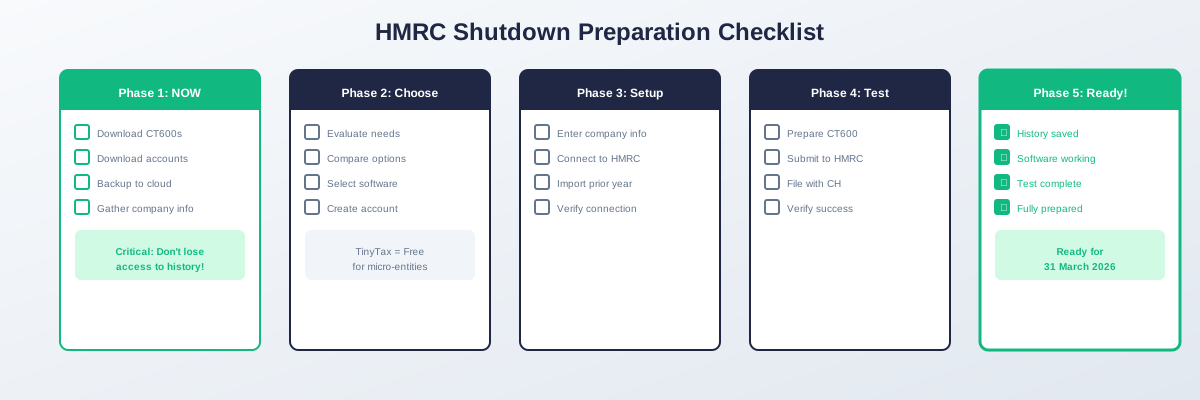
HMRC CT600 Shutdown: Your Preparation Checklist
HMRC's Company Accounts and Tax Online (CATO) service closes permanently on 31 March 2026. Use this checklist to ensure you're fully prepared.
Your Complete Preparation Checklist
Phase 1: Immediate Actions (Do Now)
#### Download Your Filing History
- Log in to Government Gateway at <a href="https://www.tax.service.gov.uk" rel="noopener">tax.service.gov.uk</a>
- Navigate to Corporation Tax section
- Download CT600 returns (last 6 years minimum)
- Download tax computations for each year
- Download submitted accounts for each year
- Download submission receipts/acknowledgements
- Save files with clear naming: `CT600_CompanyName_YYYY-MM-DD.pdf`
- Backup to cloud storage (Google Drive, Dropbox, OneDrive)
- Backup to external drive or second location
- Company registration number (8 digits)
- Unique Taxpayer Reference (UTR) — 10 digits
- Government Gateway user ID and password
- Corporation Tax online account access
- Accounting reference date (ARD)
- Current accounting period dates
Phase 2: Choose New Software (Within 30 Days)
#### Evaluate Requirements
- Determine company type (micro-entity, small, medium)
- Identify if you need multi-company support
- Check if you need trial balance import
- Decide if you want accountant-level features
- Set budget (or confirm you want free option)
- TinyTax — Free for micro-entities
- TaxCalc — From £100/year (paid)
- IRIS — From £200/year (paid)
- Sage — From £150/year (paid)
- Accountant service (outsource entirely)
- Choose primary software
- Create account with chosen software
- Verify software is HMRC-recognised
Phase 3: Set Up New Software (Within 60 Days)
#### Initial Setup
- Register/create account
- Enter company registration number
- Verify company details auto-populated correctly
- Enter UTR number
- Set accounting period dates
- Initiate Government Gateway authorisation
- Log in to Government Gateway when prompted
- Grant software permission to file on your behalf
- Verify connection shows as active
- Test connection if option available
- Enter prior year figures (for comparatives)
- Or import from downloaded HMRC records
- Verify figures match historical submissions
Phase 4: Test Filing (Before March 2026)
#### Complete a Real Filing Through New Software
- Prepare your next CT600 return
- Enter or import current period figures
- Review calculated tax
- Check all CT600 boxes completed correctly
- Generate preview of return
- Generate iXBRL accounts preview
- Submit to HMRC through new software
- Receive and save acknowledgement
- Submit accounts to Companies House (if applicable)
- Receive and save CH acknowledgement
- Check HMRC online account shows submission received
- Confirm correct figures in HMRC records
- Verify Companies House shows filing (if submitted)
- Save all confirmation documents
Phase 5: Final Transition (March 2026)
#### Last-Minute Downloads
- Download any filings made since initial download
- Verify you have complete filing history
- Final check of Government Gateway access
- Confirm new software is fully set up
- Confirm at least one successful filing completed
- Confirm next filing due date and plan
- Remove CATO bookmarks/shortcuts (to avoid confusion)
Company Information Reference
Fill this in for quick reference:
| Item | Your Details |
|---|---|
| Company name | |
| Company number | |
| UTR | |
| Accounting reference date | |
| Current period end | |
| Next filing deadline | |
| Chosen software | |
| Software login email |
Key Dates
| Date | Event | Your Action |
|---|---|---|
| Now | Preparation begins | Complete Phase 1-2 |
| 60 days out | Setup complete | Complete Phase 3 |
| 30 days out | Test filing done | Complete Phase 4 |
| 31 March 2026 | HMRC service closes | Fully transitioned |
| 1 April 2026 | Software-only filing | Use new software |
| 1 April 2027 | CH WebFiling closes | Software for accounts too |
Troubleshooting Common Issues
Can't Access Government Gateway
- Try password reset
- Contact HMRC if locked out
- Allow time for postal verification if needed
Missing Historical Filings
- Check you're viewing correct company
- Very old filings may not be available online
- Contact HMRC directly for paper records
Software Won't Connect to HMRC
- Verify UTR is correct
- Re-authorise through Government Gateway
- Contact software support
Figures Don't Match Previous Years
- Download original CT600 from HMRC for comparison
- Check for manual adjustments in original
- Verify accounting period dates are correct
Micro-Entity Qualification Check
Before choosing free software, confirm you qualify as a micro-entity (meet 2 of 3):
- Turnover not more than £632,000
- Balance sheet total not more than £316,000
- Average employees not more than 10
Support Resources
TinyTax
- Help centre: Built into software
- Support: Available through dashboard
HMRC
- General enquiries: 0300 200 3410
- Online services helpdesk: 0300 200 3600
Companies House
- General enquiries: 0303 1234 500
Final Verification
Before considering yourself fully prepared, confirm:
- All historical filings downloaded and backed up
- New software account created and verified
- HMRC connection established and tested
- At least one real filing completed through new software
- Confident using new software independently
- Aware of next filing deadline and prepared
Summary
Complete this checklist to ensure smooth transition:
- Download everything from HMRC now
- Choose software within 30 days
- Set up and connect within 60 days
- Test with real filing before March 2026
- Confirm ready before service closes
TinyTax makes the transition easy. Create your free account →