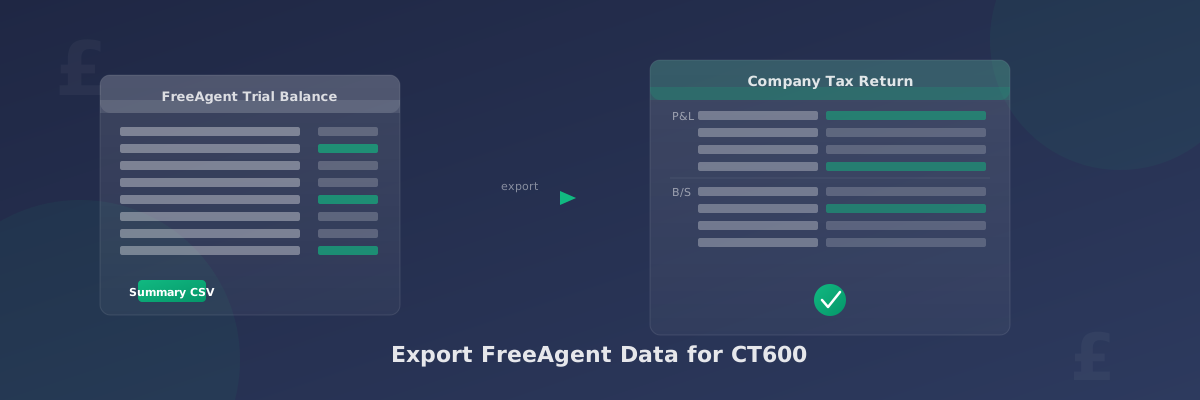
Export Data from FreeAgent for CT600
FreeAgent is one of the most popular accounting packages among UK limited company directors. When you're ready to file your company tax return, you can export your figures directly from FreeAgent and import them into TinyTax — avoiding the need to type numbers manually.
This guide explains exactly what to export, how to do it, and how FreeAgent's account types map to the categories in your CT600.
What You Need to Export from FreeAgent
The trial balance is the best report to export from FreeAgent for CT600 purposes. It shows every account with its closing balance at a point in time, which is exactly what TinyTax needs to populate your profit and loss statement and balance sheet.
FreeAgent offers two types of trial balance export:
- Summary CSV — one row per account, showing the net balance. This is what TinyTax needs.
- Transactions CSV — every individual transaction. This is for detailed analysis and will not work with the TinyTax importer.
Export Your Trial Balance from FreeAgent
Follow these steps to export the trial balance from FreeAgent:
- Select the Accounting tab from the main navigation
- Choose Reports
- Select Trial Balance from the menu
- Click Export Report at the top right
- Choose Summary CSV (not Transactions CSV)
Date range: Make sure the trial balance covers your company's full accounting period. FreeAgent defaults to the current date — adjust it to your period end date before exporting.
How FreeAgent Account Types Map to CT600 Categories
FreeAgent organises accounts into categories. Here is how they map to the sections TinyTax uses for your company tax return.
Profit and Loss Mappings
| FreeAgent Account Type | TinyTax CT600 Category |
|---|---|
| Income / Sales | Turnover |
| Other Income | Other income |
| Direct Costs / Cost of Sales | Cost of raw materials and consumables |
| Payroll / Wages | Staff costs |
| Depreciation | Depreciation and amortisation |
| General Expenses | Other charges |
| Corporation Tax | Corporation tax |
Direct costs map to cost of raw materials. These are costs directly tied to delivering your product or service — stock, materials, external contractors for project work.
Payroll accounts in FreeAgent should map to Staff costs. This includes gross salaries, employer National Insurance, and employer pension contributions. FreeAgent often splits these into separate accounts — map all of them to Staff costs.
General expenses — such as software subscriptions, office rent, insurance, advertising, travel, and professional fees — map to Other charges.
Depreciation should be mapped specifically to the Depreciation and amortisation category, not lumped into Other charges. Capital allowances are a separate calculation in TinyTax and work alongside (not instead of) depreciation.
Balance Sheet Mappings
| FreeAgent Account Type | TinyTax Balance Sheet Category |
|---|---|
| Fixed Assets | Fixed assets |
| Bank Accounts / Debtors / Other Current Assets | Current assets |
| Creditors / VAT Liability / Other Current Liabilities | Creditors due within one year |
| Long-term Loans | Creditors due after one year |
| Share Capital | Share capital |
| Retained Profit | Retained earnings |
Importing into TinyTax
Once you have your FreeAgent CSV, go to your company tax return in TinyTax and open the trial balance importer. Paste your data into the import field.
TinyTax will analyse the account names from FreeAgent and suggest categories. The suggestions appear in a drag-and-drop interface where you can move any account that's been placed in the wrong category.
Tips for a smooth import:
- FreeAgent uses fairly standard account names, so most accounts should map correctly automatically
- Review the Staff costs section carefully — FreeAgent may split payroll into multiple accounts (gross wages, employer NI, pensions) and all of these need to be in Staff costs
- Check the Turnover section includes all your income accounts, not just the primary sales account
- Make sure Depreciation isn't mixed in with Other charges
Common FreeAgent Data Issues
Dividends appearing in expenses FreeAgent sometimes records dividends paid as an expense in the P&L if the bookkeeping isn't set up correctly. Dividends are not allowable business expenses — exclude any dividend accounts from your import. They should not appear in your CT600 profit calculation.
VAT amounts in the P&L If your company is VAT registered and uses cash accounting in FreeAgent, VAT liability may appear in the P&L incorrectly. Check with your accountant if you see unexplained VAT entries in the profit and loss section of your trial balance.
Personal expenses recorded as business expenses If any personal expenses have been recorded in FreeAgent as business costs, these should be removed before importing. They would otherwise reduce your taxable profit incorrectly. The correct treatment is to record these as a director's loan.
Opening balances not matching prior year If your FreeAgent opening balances differ from last year's closing figures, the trial balance import may produce a balance sheet that doesn't balance. Resolve any discrepancies in FreeAgent before importing.
Corporation tax expense in the P&L FreeAgent often includes a corporation tax provision in the P&L. Map this to the Corporation tax category in TinyTax — this tells TinyTax to exclude it from the taxable profit calculation, since TinyTax calculates the tax liability itself.
After Importing Your FreeAgent Data
Once the trial balance is imported, TinyTax populates your company tax return with the figures from FreeAgent. You can then:
- Add capital allowances on qualifying assets (plant, machinery, vehicles)
- Enter any directors' loan account balances
- Claim R&D tax credits if applicable
- Review the CT600 boxes before submitting to HMRC
If you use QuickBooks, see QuickBooks Account Mapping for CT600 for the same process with QuickBooks account types.
For guidance on mapping Xero accounts to CT600 categories, see our Xero Account Mapping for CT600 guide.
Summary
Exporting your trial balance from FreeAgent takes under a minute — select the Summary CSV (not the Transactions CSV) from the Trial Balance report in FreeAgent's Accounting tab. Once you paste it into TinyTax, the drag-and-drop mapping tool handles the category assignments. Income and Sales accounts go to Turnover, payroll accounts to Staff costs, and general expenses to Other charges. After confirming the mapping, your company tax return is populated automatically.